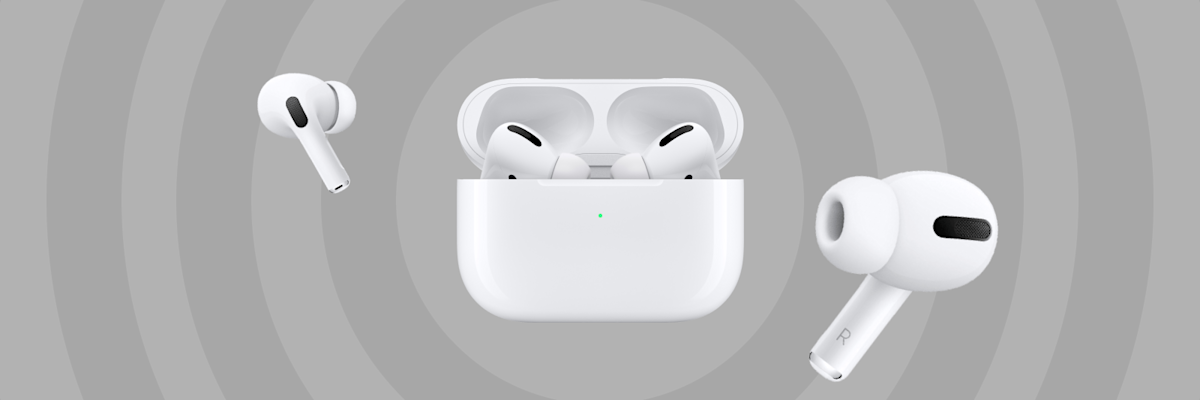
Can I Connect AirPods to Android?
The short answer: Yes, absolutely! While Apple designed AirPods to work best within their ecosystem, they use standard Bluetooth technology. This means you can pair them with almost any Android smartphone or tablet.
In this guide, we'll explain how to set them up, what limitations you might face, and how to optimize your listening experience.
How to Connect AirPods to an Android Device
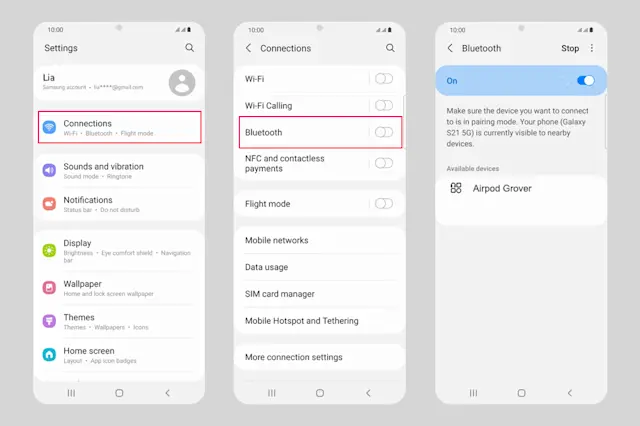
Put your AirPods in pairing mode:
Place both AirPods in their charging case, open the lid, and press and hold the small button on the back until the LED indicator starts flashing white. For AirPods Max, press and hold the noise control button on the right ear cup instead.
Activate Bluetooth on Android:
Open your Android device's
Settings
, go to
Bluetooth
(or Connected Devices), and turn it on.
Pair the AirPods:
Find your AirPods in the list of available Bluetooth devices and tap to connect. Within seconds, you're ready to go.
One thing to note: Google's Fast Pair, which automatically starts pairing for many Android headphones, doesn't work with AirPods. You'll always need to connect manually through Bluetooth settings, as described above.
What Features Work (and Which Don't)?
When connected to Android, AirPods function like a premium pair of standard Bluetooth earbuds. You can stream music, take phone calls, and use built-in media controls (like pressing the stem to play, pause, or skip tracks). The hardware controls on AirPods Pro and AirPods Max also still work: press and hold the stem sensor or the ear cup button to switch directly between Active Noise Cancellation and Transparency mode, no app required.
However, some iOS-exclusive features are missing out-of-the-box:
Automatic Ear Detection:
Music won't automatically pause when you take an AirPod out of your ear.
Siri Access:
You won't be able to trigger Siri (though third-party apps can enable Google Assistant instead—more on that below).
Control Customization:
You can't remap or change what tap/squeeze gestures do without an Apple device.
Spatial Audio with Head Tracking:
Immersive 3D audio features remain limited to the Apple ecosystem.
Automatic Device Switching:
Seamless switching between devices doesn't happen automatically—you'll need to reconnect manually through the Bluetooth menu each time.
Find My Tracking:
Lost AirPods can't be located through Google's Find My Device network.
Sound Quality: Android vs. iPhone
AirPods deliver great audio performance on Android, largely thanks to high-quality hardware and support for the AAC Bluetooth codec . Most modern Android devices support AAC, though not all handle it equally well. If your device doesn't process AAC optimally, sound quality might be slightly affected compared to using AirPods with an iPhone.
However, iPhones hold a slight edge due to deep software integration:
Tailored Audio Processing:
iPhones apply native software tuning optimized specifically for AirPods, such as Adaptive EQ, which adjusts sound based on how well the earbuds fit and seal in your ear. This isn't available on Android.
Lower Latency:
Audio sync in fast-paced mobile gaming is slightly sharper on iOS, whereas Android may experience minor lag depending on the model and Bluetooth implementation.
Despite these minor differences, AirPods remain one of the best choices for wireless audio on Android.
Tips to Get the Most Out of Your AirPods on Android
Keep an eye on battery level:
Android doesn't show AirPods battery status natively, so apps like
AirBattery
or
MaterialPods
let you check the charge level of each earbud and the case.
Trigger Google Assistant by tapping:
The
Assistant Trigger
app lets you launch Google Assistant with a tap on your AirPods—a handy stand-in for the missing Siri integration.
Get more control with LibrePods:
For deeper control—like an extended battery display, ear detection, or switching between ANC and Transparency mode from an app—there's LibrePods, an open-source project. Most features require root access and the Xposed framework, and full functionality is currently limited to select Android devices, such as newer OnePlus and Oppo phones running ColorOS/OxygenOS 16.
Check your AAC support:
Look in your Android device's developer options or Bluetooth settings to confirm the AAC codec is active for the best sound quality.
Keep firmware updated:
AirPods firmware updates are only available through an Apple device. Connect them to an iPhone or iPad now and then—your own secondary device or a friend's—to keep them up to date, even if you mainly use them with Android.
Final Verdict
Connecting AirPods to an Android phone is quick, simple, and delivers excellent sound quality. You'll miss out on comfort features like automatic ear detection, Spatial Audio, and Find My tracking, but core functionality like ANC via the hardware controls and strong sound quality stays intact. With a few small app tricks, you can make the experience on Android even better.